MicroSIP Setup Guide for X-Telecom: Complete Configuration Tutorial
Step-by-step guide to configuring MicroSIP with X-Telecom Telecom. Learn how to set up your SIP account, configure transport protocols, manage Caller ID, and optimize your softphone for stable VoIP communication.
MicroSIP Softphone Setup Guide
MicroSIP is a lightweight, reliable open-source softphone for Windows. It is completely free, easy to configure, and highly efficient for SIP-based communication.
Download & Install:
👉 https://www.microsip.org/downloads
Table of contents [Show]
🔧 Installation Tip
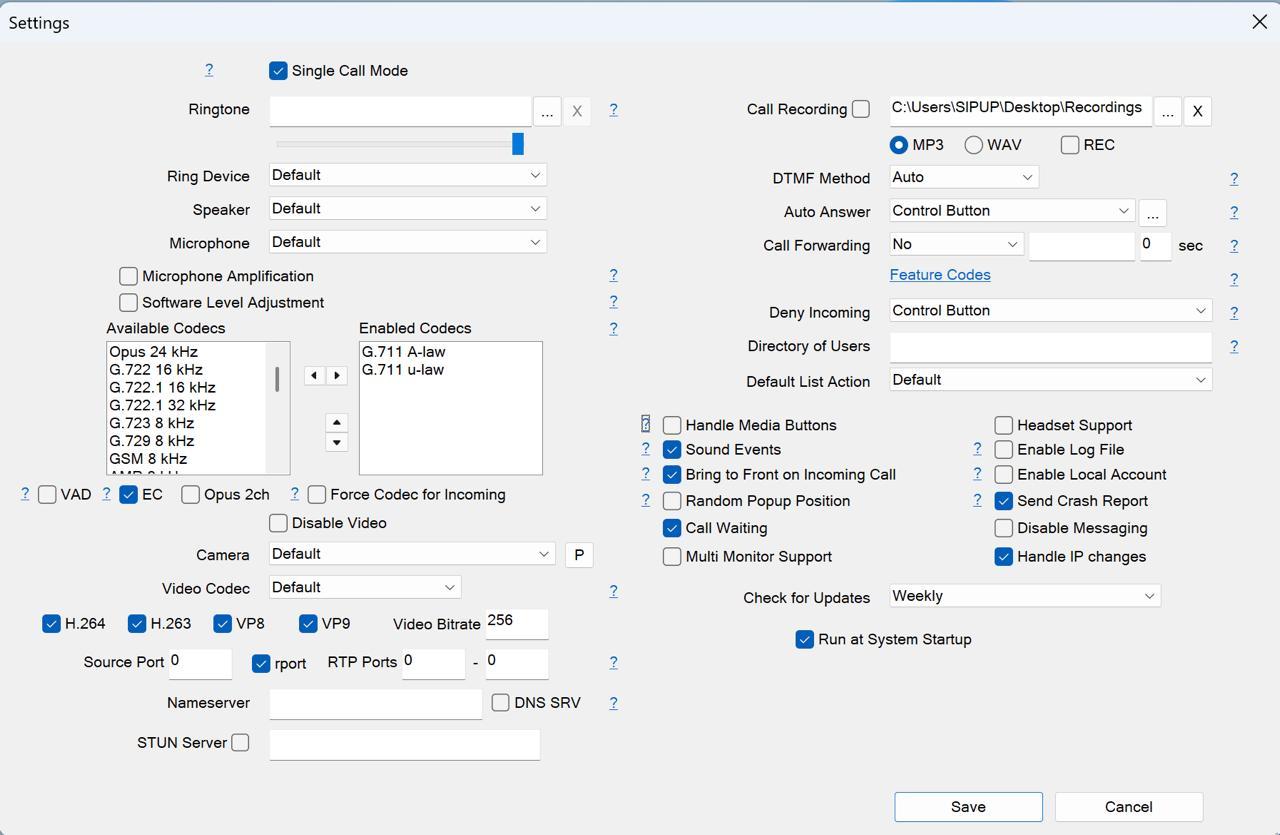
During installation and initial launch, it is recommended to keep the default settings unless you have specific technical requirements. The default parameters are optimized for most use cases.
📌 Configuring Your SIP Account
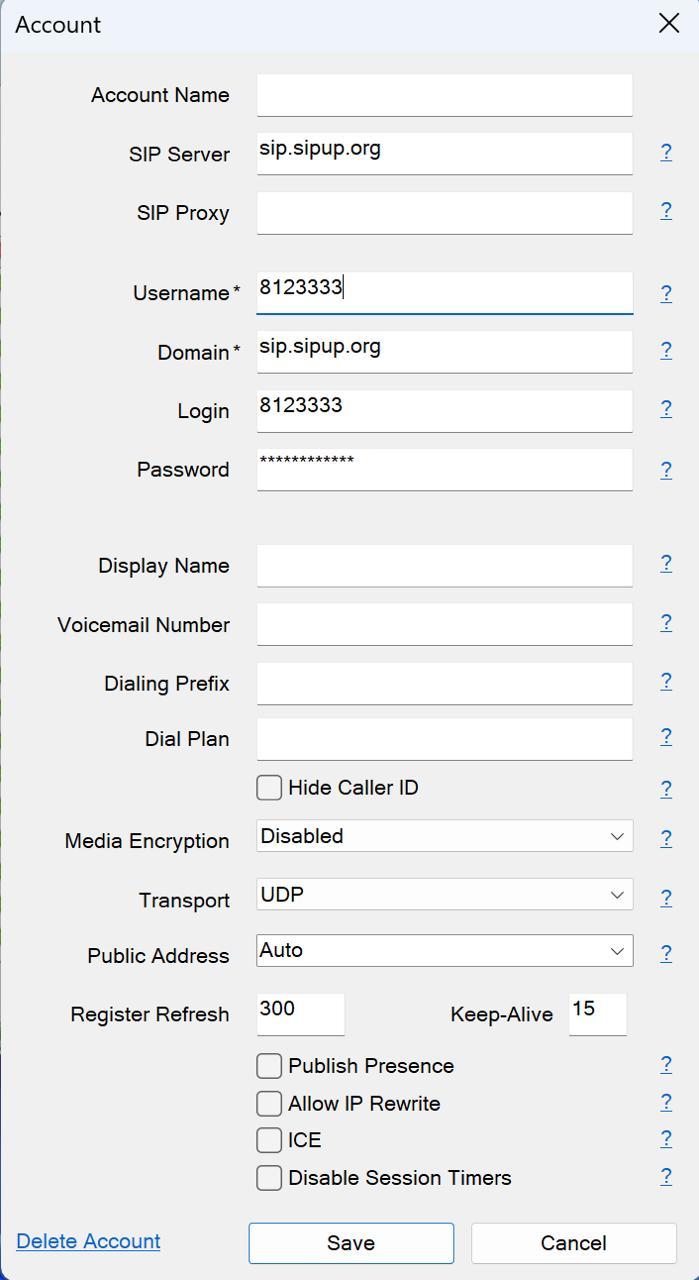
Open the Account settings window in MicroSIP and fill in the fields as follows:
- Account Name: You can enter any name (e.g., "Work") or leave it blank. This is for your reference only.
- SIP Server: sip.x-telecom.org
- SIP Proxy: Leave this blank. We do not use a proxy.
- Username: Enter your SIP Device Login.
❗ Note: This is not your website/dashboard login.
- Domain: sip.x-telecom.org
- Login: Enter the same SIP Device Login used in the Username field.
- Password: Enter your SIP Device Password (not your web dashboard password).
You can find your SIP device credentials in your control panel here:
👉 https://x-telecom.org/my/personal-details
⚠️ Important Notes
- Display Name: Leave this field empty. MicroSIP may transmit this value inconsistently.
- Caller ID: Your Caller ID is managed exclusively via the control panel, not within the softphone settings. Update it here:
👉 https://x-telecom.org/my/personal-details
📞 Dialing Prefix
The Dialing Prefix field is used for specific technical routing. Use only the prefixes provided by our service.
- Example: 002 — used for alternative US routing.
If a prefix is entered, all outgoing calls will automatically use that specific route. Remove the prefix at any time to return to standard routing.
🌐 Transport Protocol
- UDP (Default): This is the standard recommended setting for the best performance.
- TCP/TLS: If your environment requires TCP or TLS encryption, please contact our technical support first so we can enable the corresponding transport on our side.
🔊 Advanced Settings
Once the account is active, you can explore the general settings. In most cases, no changes are necessary.
| Feature | Specification |
|---|---|
| Codecs | We primarily use G.711 A-law / U-law. |
| Call Recording | MicroSIP can record calls directly to your PC. Specify the destination folder in the "Settings" menu. |
📖 Full Documentation
For a deep dive into all features, visit:
👉 https://www.microsip.org/help
Instructions 30 Nov, 2025
How to create an account with X-Telecom Telecom
Detailed photo instructions on how to register with X-Telecom Telecom
Instructions 26 Aug, 2025
Connecting Zoiper to X-Telecom Telecom: Complete Guide for Android, iPhone, Windows, and macOS
Step-by-step guide on how to configure Zoiper with X-Telecom Telecom on Android, iPhone, Windows, and macOS. Learn SIP settings, manual setup, checklist, and why X-Telecom with Zoiper is secure and convenient.