Instructions
13 Aug, 2025
Setting Up Zoiper with X-Telecom on Your Smartphone
Step-by-step guide to connect Zoiper with X-Telecom for VoIP calls on iPhone and other smartphones.
To use Zoiper with X-Telecom telephony on smartphones (in this example, iPhone), follow these steps in order:
Instructions:
- Get your SIP credentials after registration — they will be sent to your email and are also available in your control panel:
https://my.x-telecom.org/billing/devices/user_devices
You will see:- Login (numbers)
- Password
- Host — sip.x-telecom.org or IP 178.162.235.72
- In Zoiper, do not choose the suggested providers. Select Manual Configuration:
- Settings → Accounts → + (Add Account)
- First question: "Do you have a login and password?" — click YES
- Two options will appear: Choose provider or Manual Configuration. Select Manual Configuration
- Then choose SIP account
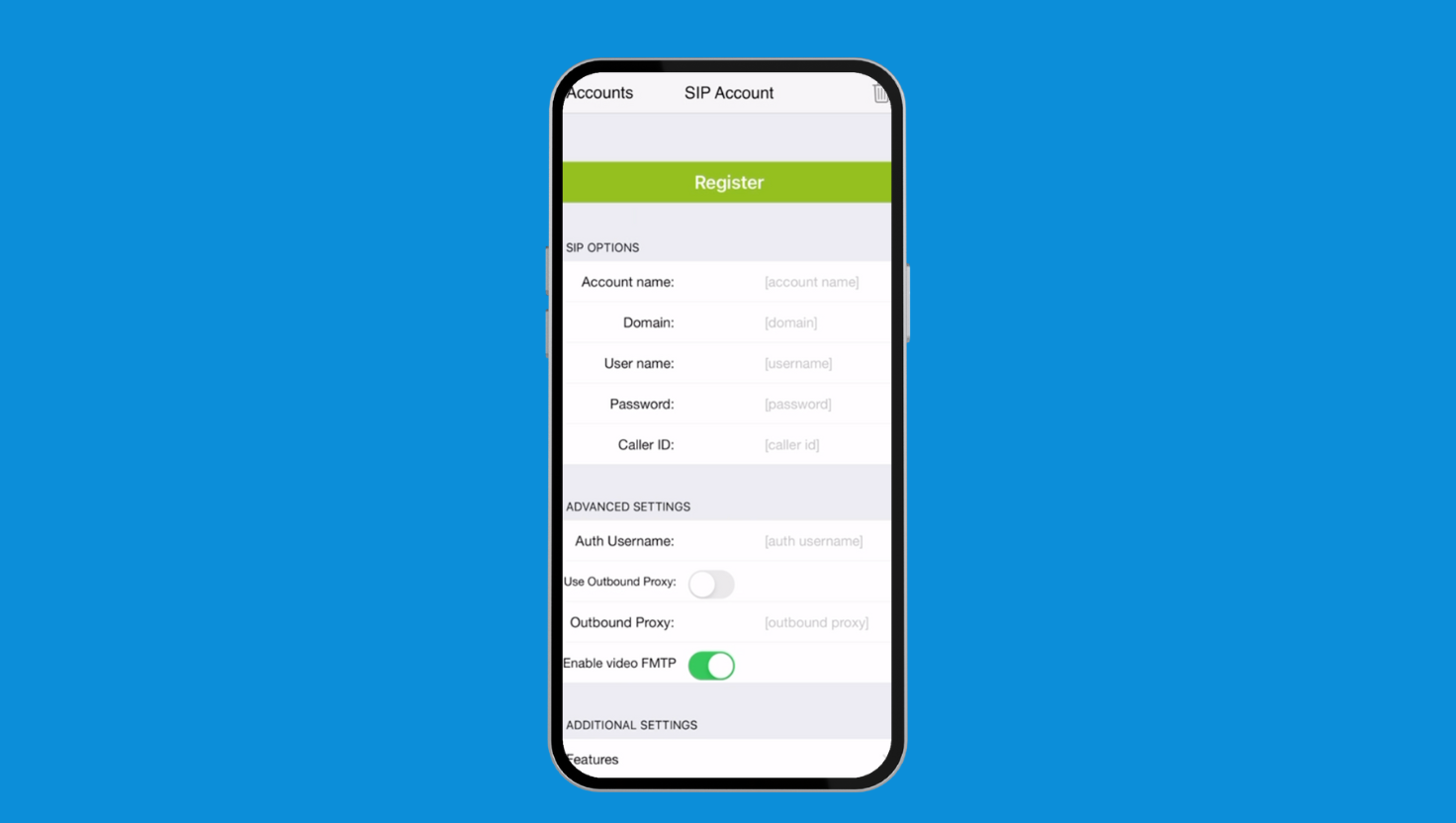
- Fill in the account details:
- Account name: any name for your convenience
- Domain/Host: sip.x-telecom.org or 178.162.235.72
- Username: your SIP login
- Password: your SIP password
- Caller ID: leave empty (softphones often transmit it incorrectly)
- Advanced settings:
- In Auth Username, also enter your SIP login
- Tap Register (top button in Zoiper)
- Check registration result:
- If successful, you will see OK
- If not, a red error code will appear
- Making calls:
- If you have sufficient funds in your account, you can start making calls
If you encounter any difficulties, you can always contact technical support: https://t.me/x-telecom_sup